Scriptorium
Excel formulas in a Markdown document
Type a formula into a table cell, as you would in Excel, and the document does its own sums. Change a figure and every total follows, in a file that is still plain Markdown.
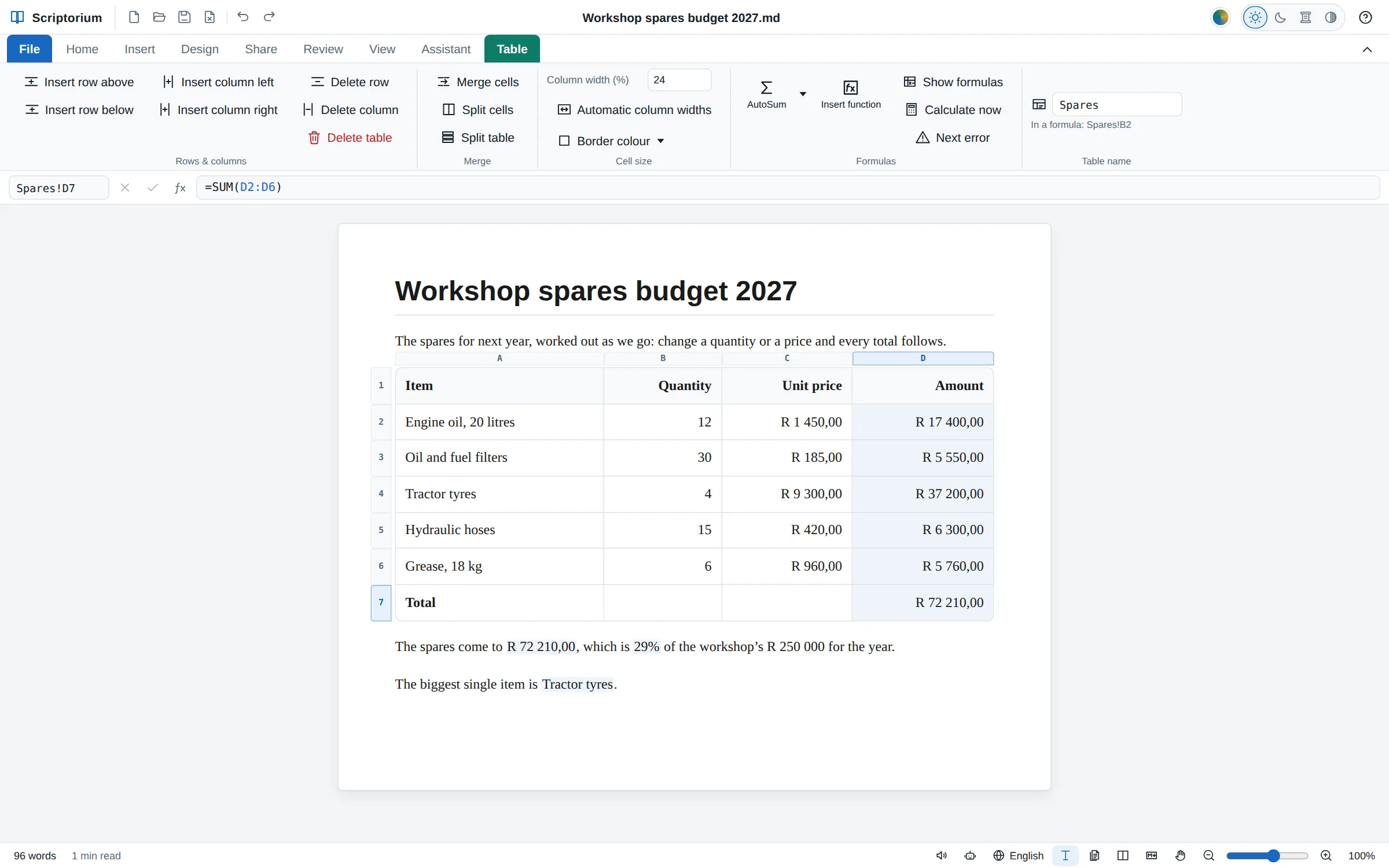
Most documents with numbers in them are really two files: the report, and the spreadsheet the numbers came from. Change a figure in one and you have to remember to change it in the other. In Scriptorium the table in the document does its own sums. Type a formula into a cell, as you would in Excel, and the cell shows the answer. Change a quantity or a price and every total that depends on it follows.
Your first formula
Make a table (Insert ▸ Table), fill in a few numbers, click in the cell where the total belongs and type an equals sign:
- Type = and then the calculation, such as
=B2*C2, or click the cells to put their names in. Each name is drawn in its own colour, and so is the cell it means. - Press Enter to finish and go down, Tab to go right, or Esc to leave the cell as it was.
- To change it later, double-click the cell or press F2.
Cells are named the way Excel names them. The columns are A, B, C from the left and the rows 1, 2, 3 from the top, and the heading row is row 1. B2 is one cell, B2:B9 is the cells from B2 down to B9, and a $ keeps part of a name from moving when the formula is copied: $B$2. F4 puts the $ signs in for you.
While you type a function’s name, a list of functions appears, and Tab takes one. A tip then shows what the function needs, with the part you are typing in bold.
The formula bar and the Table tab
When the cursor is in a table, a formula bar appears above the page, as in a spreadsheet. On the left is the Name box, which says where you are (B4, or Spares!D7 in a named table). Type an address there and press Enter to go to it. Beside it are ✗, ✓ and fx, and then the formula itself. Thin bands with the column letters and row numbers appear round the table, so you can read the cell names straight off.
The Table tab appears beside the others while the cursor is in a table. Its Formulas group has the buttons a spreadsheet user looks for:
- AutoSum (Alt+Shift+=) adds up the numbers above the cell, or to its left when there are none above. Its arrow offers an average, a count, the largest and the smallest instead.
- Insert function (Shift+F3) finds a function by its name or by what it does, with a box for each thing it needs and the answer underneath as you fill them in.
- Show formulas (Ctrl+`) shows every formula as it is written instead of its answer.
- Calculate now (F9) works everything out again. TODAY, NOW and RAND keep their value while you type, so random numbers do not jump about; opening the document, printing and exporting work them out afresh too.
- Next error takes you to each formula that could not be worked out.
Choose a few cells and the bar at the bottom of the window shows their sum, their average and how many there are.
A calculation in the middle of a sentence
A formula does not have to live in a table. Put one between {= and } anywhere in your writing, and the sentence shows the answer:
The spares come to {=Spares!D7}, which is {=TEXT(Spares!D7/250000,"0%")} of the year’s budget.Plain cell names mean the table just above the sentence. To reach a table further away, give it a name: click in it and type the name into Table name on the Table tab. Then Spares!D7 finds it wherever it is in the document, even after it moves.
The functions
Scriptorium has Excel’s functions for money, dates, text, statistics, lookups and logic, written with Excel’s names and Excel’s rules, so a formula you know from a spreadsheet works the same here: SUM, IF, XLOOKUP, VLOOKUP, SUMIFS, PMT, WORKDAY, TEXT and hundreds more. Insert function lists them all by group, and the help has a page with every one.
It also lets you write maths the way maths is written, and does maths that Excel cannot. The functions Excel doesn’t have are marked Beyond Excel in Insert function:
| You write | It works out |
|---|---|
=√2 and =5! | a square root and a factorial, written as maths writes them |
=πr² where r = 3 | the area of a circle of radius 3 |
=2^100 | all 31 digits, exactly |
=FRACTION(1/3 + 1/6) | exactly a half, as a fraction |
=SOLVE(x² − 5x + 6 = 0, x) | 2 and 3 |
=INTEGRAL(sin x, x, 0, π) | the area under sin x, 2 |
=SUMSEQ(1/n², n, 1, ∞) | the sum of an endless series |
Whole numbers of thousands of digits are worked out in full, fractions stay exact, and there are eigenvalues of matrices (EIGENVALUES({1,2;3,4})), complex numbers written as maths writes them (=(3 + 4i)(1 − 2i)), prime numbers, derivatives and limits besides.
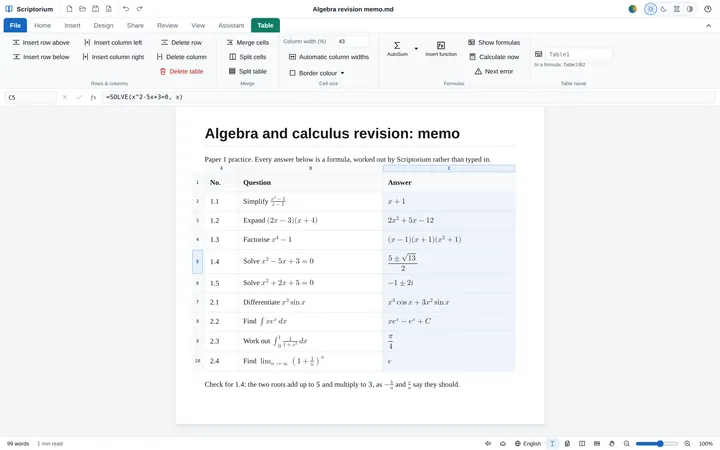
Since Scriptorium 3.46, letters can stay letters too. =FACTOR(x⁴ − 1) gives (x − 1)(x + 1)(x² + 1), =SOLVE(x² − 5x + 3 = 0, x) gives (5 ± √13)/2 rather than two decimals, and DIFF and INTEGRATE give formulas, all set as maths. Our guide to algebra with letters shows the seven functions that do it.
Statistics, bonds and databases
Since Scriptorium 3.47 there are 88 more of Excel’s functions (110 with their older names), each checked against LibreOffice Calc or Excel’s own examples. The statistics functions give the chance of a result and test whether two sets of figures really differ: =NORM.DIST(13, 10, 2, TRUE) is the chance that a value spread normally round 10, with a standard deviation of 2, is 13 or less (0.933), and =T.TEST(B2:B9, C2:C9, 2, 1) compares two columns of marks. Excel’s older names, such as NORMDIST and TTEST, work too.
The bond and security functions work out what banks and treasurers do: =PRICE(DATE(2026,1,15), DATE(2031,1,15), 9%, 10%, 100, 2) is the price of a five-year bond with a 9% coupon paid twice a year, bought to yield 10%: 96.14 for every 100 of its face value. YIELD, DURATION, ACCRINT, the coupon dates and the Treasury bill functions are there as well, with every day count basis.
The database functions treat a table as a list of records, one to a row, with the names of the columns in its first row. A second, small table holds the conditions, with the names of the columns it looks at in its first row and what they must be in the row under them:
| Tree | Height |
|---|---|
| Apple | >10 |
With that table named Ask, beside a table of an orchard’s trees named Trees, =DSUM(Trees!A1:E7, "Profit", Ask!A1:B2) adds up the profit of the apple trees taller than 10 metres, in rands if the profits are in rands. DAVERAGE, DCOUNT, DMAX, DMIN and DGET do what their names say, and Insert function has them all in a group of their own, Database. The conditions in one row must all hold; add a second row of conditions and a record that meets either row counts.
And CONVERT turns a number from one unit into another, with all of Excel’s units and their prefixes: =CONVERT(5, "mi", "km") is 8.04672, and =CONVERT(100, "C", "F") is 212.
Number formats, names and Excel workbooks
Since Scriptorium 3.48 a table keeps what Excel keeps with its cells. Click in a cell, or choose a few, and Number format on the Table tab writes their numbers as money, as an accounting column, a percentage, a fraction, a date or a time, or in any of Excel’s own format codes, such as #,##0.00;[Red]-#,##0.00. The number underneath stays the same, so the formulas that use it carry on as before. Money is written in your country’s way, R 1 250,00 in South Africa, and in the Markdown the format follows the formula: =SUM(D2:D6) {fmt:"R "#,##0.00}.
Names, on the same tab, give a value or some cells a name that every formula of the document can use. Name 15% VAT and write =D7*VAT; when the rate changes, change the name, and every formula follows. Rename it and every formula that uses it is renamed too. The names are kept at the top of the Markdown, one to a line: VAT: =15%.
A formula can name a column by its heading, as in Excel’s tables. In an Amount column, =[@Qty]*[@Price] works out each row from that row’s quantity and price, and from anywhere else =SUM(Order[Amount]) adds up the Amount column of the table named Order. Turn on Totals row and the table’s last row holds its totals: the column stops above it, so =SUM([Amount]) in that row adds up the column without counting itself.
To fill a column, drag the small square at the corner of the cells down, as in Excel: formulas follow with their cells moved, two numbers carry on as a series, a date goes on a day at a time and Week 1 becomes Week 2. Dragged past the last row, the table grows. Ctrl+D copies the cell above into the one the cursor is in.
When a colleague wants a spreadsheet, File ▸ Export ▸ Excel workbook (.xlsx) makes one: each table a sheet named after it, every cell at its own address, the formulas in Excel’s own spelling and still working, with their number formats and the document’s names. A formula Excel has no function for, such as SOLVE, goes in as its answer, and Scriptorium says how many did. Open an Excel workbook in Scriptorium and it comes in the same way, each sheet a table with its formulas, formats and names.
Answers that spill, and LAMBDA
Since Scriptorium 3.49 a formula can answer with a whole block of values, as in Excel 365, and the block fills the empty cells to its right and below it. Below a list of sales, =SORT(A2:D11, 4, -1) in an empty part of a table gives the same rows with the biggest sale first, =FILTER(A2:D11, B2:B11="Riverside") only one stall’s, and =UNIQUE(C2:C11) each item once. The formula stays in its own cell; the cells it fills show its values, in the look of the cells they came from, and change when the list does.
The cells it fills must be empty and inside the table. If one holds something, or the table is too small, the formula shows #SPILL!, and its tip says which cell is in the way, or how many rows the answer needs: add rows on the Table tab, and the block fills them. Click in the block and a thin blue line shows all of it, with the formula greyed in the formula bar, because it is changed in its own cell. =SUM(F2#) adds up everything the answer in F2 fills, however big it grows.
=GROUPBY(B2:B11, D2:D11, SUM) adds the list up by stall, one row each with a Total row, and =PIVOTBY(B2:B11, C2:C11, D2:D11, SUM) by stall down the side and item across the top. Put a PIVOTBY in the top corner of an empty table and its answer makes the whole table, headings, totals and all.
LAMBDA makes functions of your own. In Names, name WithVat as =LAMBDA(price, ROUND(price*(1+VAT), 2)), and =WithVat(B2) works in every table of the document; change it once and every price follows. =BYROW(B2:E9, SUM) totals each row, and MAP, REDUCE, SCAN and MAKEARRAY hand values to a LAMBDA one at a time. An Excel workbook keeps all of it: the blocks spill again in Excel 365, and the LAMBDAs are names there too.
Numbers, money and dates as you write them
Type numbers the way you always do, R 1 250,00 or $1,250.00, 15% or 2026-10-12: the formulas read them, and the answers come out looking the same. A sum of rands is in rands, a percentage stays a percentage, and a date plus 30 is a date 30 days later.
When something cannot be worked out, the cell shows one of Excel’s errors with a small red corner: #DIV/0! for dividing by zero, #VALUE! for words where a number is needed, #REF! for a cell that is not there any more. Point at the cell to read what went wrong, in plain words.
Put in or take out rows and columns, or move a table, and every formula that uses them follows, as in a spreadsheet. Undo puts everything back.
What gets saved, and what others see
The file keeps the formula, never just the answer, so nothing is lost when you change a figure next year. In the Markdown the total cell reads =SUM(D2:D6), which still makes sense to a person, or an AI, reading the file in another program.
Everything you print or export gets the answers: the printout, the PDF, Word and OpenDocument files, web pages and e-books. The Markdown file itself, and Copy Markdown, keep the formulas. Copy formula cells and paste them into other cells, and their cell names move with them; paste them into another program and they arrive as their answers. After a paste, Values only keeps the answers and drops the formulas.
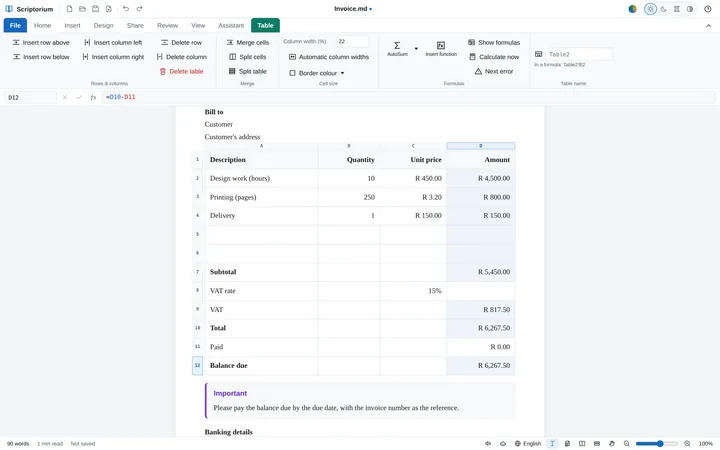
For ready-made examples, the templates under File ▸ New come with their formulas in place: an invoice, a quotation, a budget, a mark sheet and more. Our guide to invoices and quotations that add themselves up walks through them.